How to Block Spam Referrals From Your Google Analytics Data [An Update]

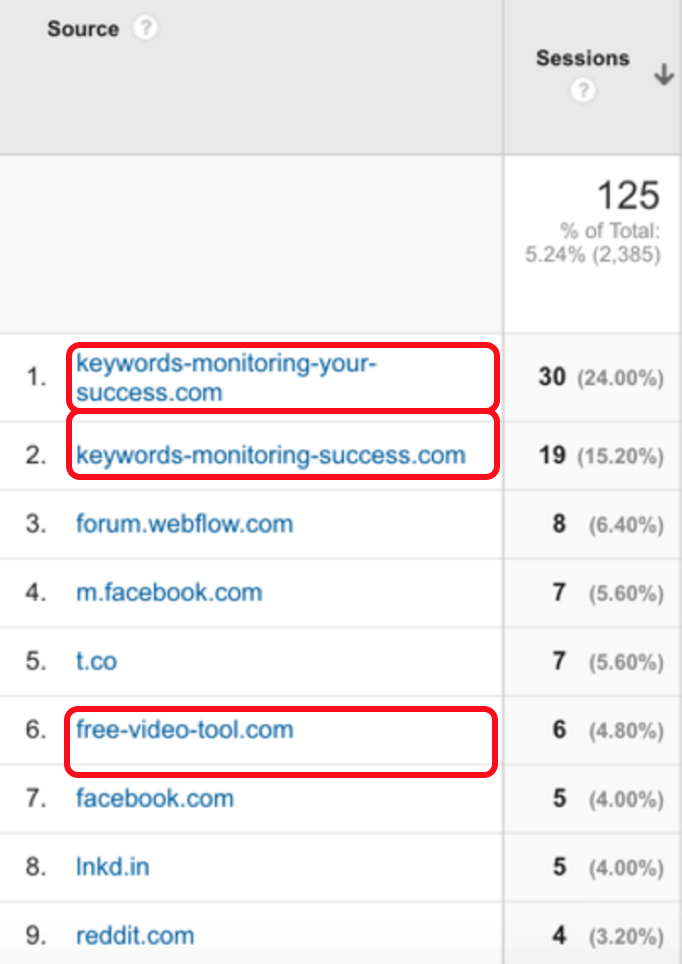
Referral spam is a frustrating reality web owners must deal with when it comes to using Google Analytics. Referral spam is defined by the spiders visiting websites to count as traffic and entice web owners to click on the sites from their Analytics.
Unfortunately, over recent years, referral spam has become much more prominent. While it isn’t dangerous to your website (as long as you don’t click on links), it will skew traffic significantly, so it’s important to block it from your traffic data.
Last time we talked about referral spam, we walked through a great option for blocking it for the non-developer.
The only problem with it? You have to constantly update the websites you block; because if spam is nothing else, it’s resilient. There will forever be a new website that’s going to try to convince you that you have more traffic than you really do.
So this updated method can be done by non-developers and marketers alike and won’t force you to have to continuously log in to block new referral spam.
With that, let’s get to the steps of how to block spam referrals from your Google Analytics data.
1. Determine your hostname(s).
Start by checking the hostname that your website uses outside of the spam referrals sent.
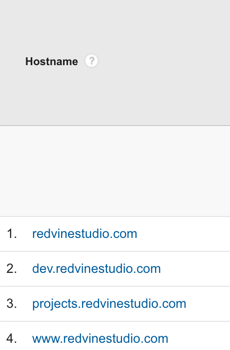
Check your hostname for your site by going to Audience > Technology > Network, then choose Hostname instead of Service Provider.
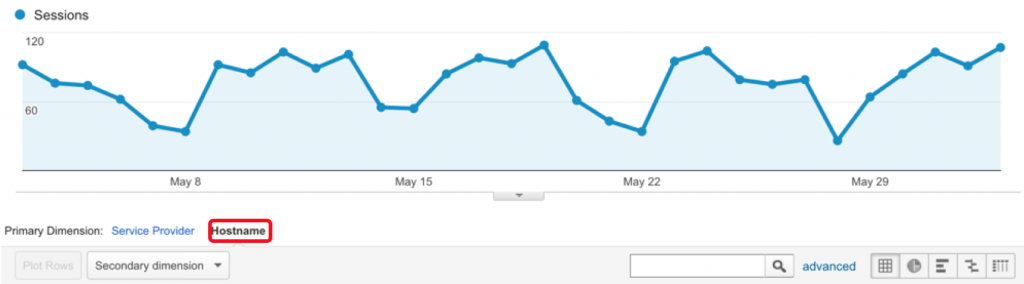
Here, you may find that you’ll have several hostnames sending visitors to your site. Typically, only a few will be legitimate. They may be www and non-www variations of your website and could also include other websites you own.

DIY Your Search Engine Optimization with the Ultimate SEO Checklist
Check, check, check. That’s the sound of you checking off your SEO to-do list. Don’t miss a single opportunity optimizing your website and web presence by leveraging the Ultimate SEO Checklist.
2. Create a filter.
Next we’re going to block anything other than the legitimate hostnames we want using a filter. So go to Admin > (View) > Filters > +Add Filter.
3. Block spam hostnames.
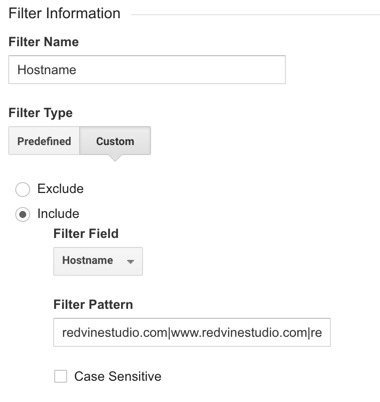
Enter your filter name. Typically, I’ll always call my filter “Hostname”. Then:
- Choose “Custom,” rather than “Predefined”
- Choose “Include,” rather than “Exclude”
- Change the Filter Field to “Hostname”
- Enter all the legitimate hostnames you looked up into Filter Pattern. Be sure to separate each hostname with a pipe and no spaces.
4. Verify your filter.
Last, but certainly not least, I always verify the filter at the bottom of this page) to make sure it’s getting rid of all the junk and save! This will stop most of your referral spam traffic going forward.
It’s important to note: we do still see some sneaky referral spam coming through, but not nearly the amount as before.