
How to Add Users to Your Google Analytics 4 Account

Since Google Analytics is constantly changing and evolving, it can be challenging to locate certain sections in the settings. While adding new users is no difficult task, it’s certainly no easy one either; especially when you’re struggling to find out where to do it!
Here’s how to add a user in the desktop version of Google Analytics 4.

Go to Settings
When you log into your Google Analytics account, you’ll be taken to your Dashboard, by default. Click on the gears in the lower lefthand corner:

Choose Access
From here, you can choose to add users at the Account or Property access. (Account access will give the user access to this and any other websites in this account; while Property access gives access to only the website you are currently viewing.)
Depending on the user and the website(s) you want to give access, make sure you choose wisely here!
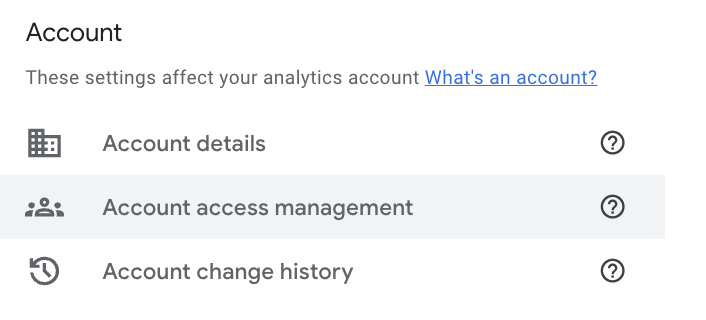
OR
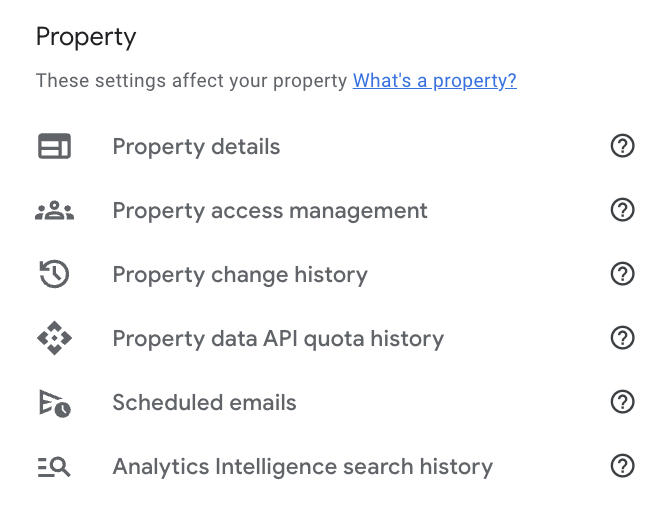
Add User(s)
Once you’ve chosen the level of access you’re giving the user, click the “+” sign at the top right of your screen. Now you’re able to add users or user groups.
▷ Users: add a single user with an email address
▷ User groups: add a user group (must have your account linked to Google Marketing Platform Organization)

More often than not, you’ll be adding a single users to your account, so we’re going to continue as if you’re adding users.
Add Email Address(es)
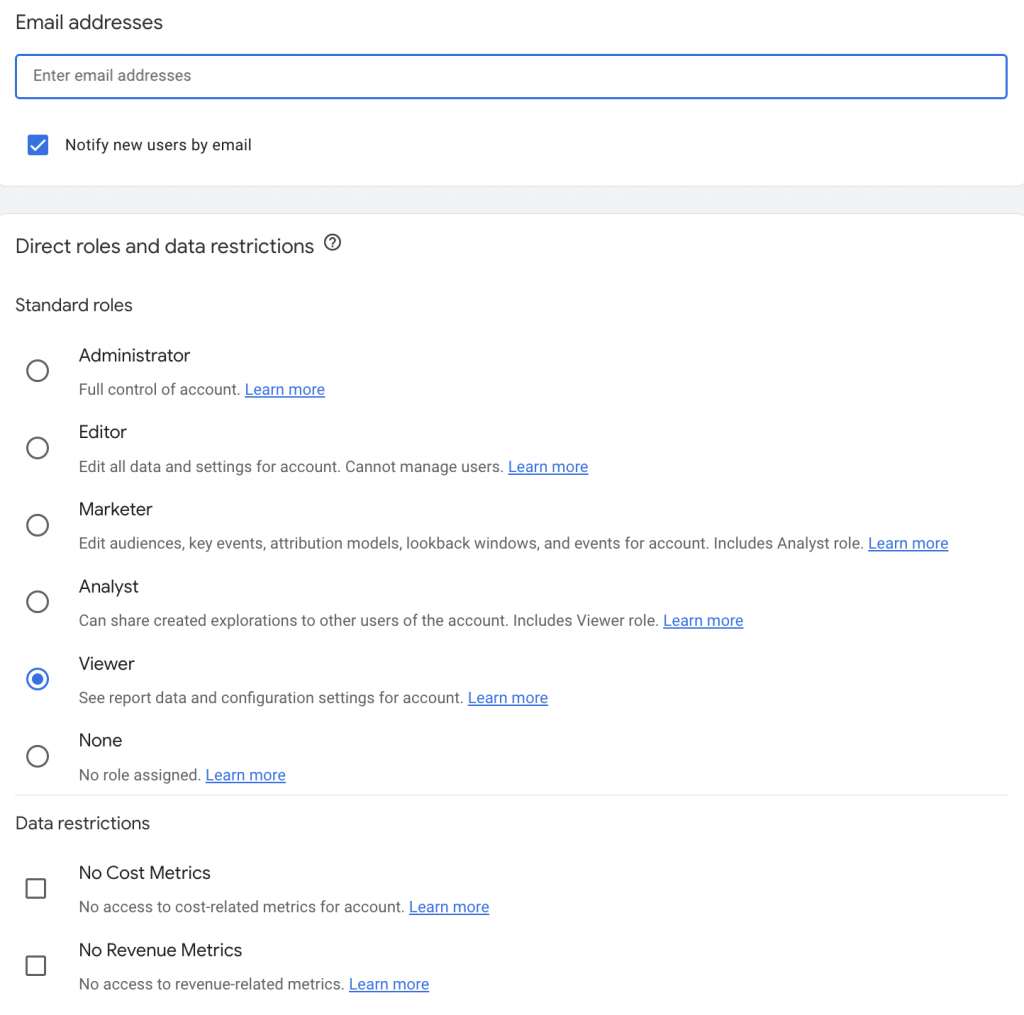
Enter one or as many email addresses as you need to provide access for. These email addresses must be Google emails; which means they don’t have to be Gmail addresses, but must be connected with a Google account. You can select/deselect that users are notified by an email.
Add Roles & Permissions
Allow permissions for the user, including (listed by order increasing permissions):
▷ Administrator: full access to the account
▷ Editor: Edit all data and settings for account. (Cannot manage users.)
▷ Marketer: Edit audiences, key events, attribution models, lookback windows, and events for account. (Includes Analyst role.)
▷ Analyst: Can share explorations to other users of the account. (Includes Viewer role.)
▷ Viewer: See report data and configuration settings for account.
▷ None: No role assigned.
Note that I often ask clients to share access with us at the Editor level.
You can also include “no cost metrics” and “no revenue metrics” as data restrictions.
Which Google Analytics user permissions are right for you?
The answer is completely dependent on who you are adding to your Google Analytics account.
For employees who just need to read reports and don’t need additional access, Analyst or Marketer are great options.
For contractors, they may need more access and likely need at least the Editor permissions.
In most instances, only one key person or company account should retain the Administrator permission to maintain management control.

DIY Your Search Engine Optimization with the Ultimate SEO Checklist
Check, check, check. That’s the sound of you checking off your SEO to-do list. Don’t miss a single opportunity to optimize your website and web presence by leveraging the Ultimate SEO Checklist.
NEW: Grab the Ultimate SEO Checklist for Web Designers/Developers, Digital Marketers, or Managers.
ready for more?
We’ve got you covered…and we’ll keep it simple.
Every week, we’ll pop in your inbox with awesome SEO and blogging tips made easy.